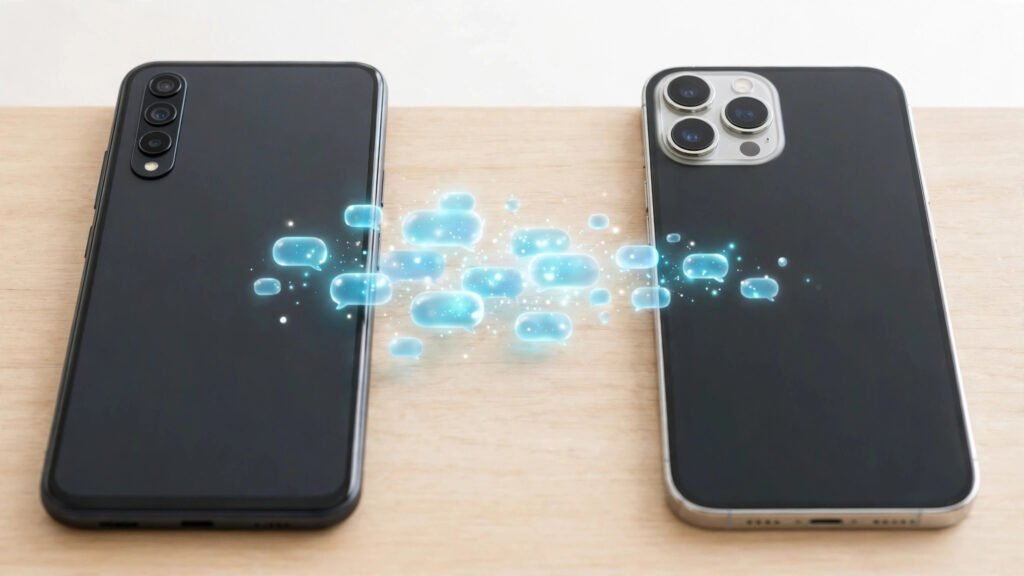
Switching from Android to iPhone is exciting, but for most people in Pakistan one worry comes first: what happens to years of WhatsApp chats, photos, voice notes and family group messages?
The good news is that WhatsApp now offers an official, free way to move your chats using Apple’s Move to iOS app, over a direct Wi-Fi connection between the two phones.
Before You Start: Requirements
First, charge both phones above 50 percent and keep them plugged in. A transfer can take a long time.
Second, put both phones on the same Wi-Fi network. In Pakistan, a home Wi-Fi connection works best; mobile data or a hotspot may be slower or may fail.
Third, install the free Move to iOS app on your Android phone from the Google Play Store. It is published by Apple.
Fourth, update WhatsApp to the latest version on both phones, and make sure your iPhone runs a recent version of iOS.
Fifth, and most importantly, your iPhone must be new or freshly reset. The transfer only works during first-time setup or right after a factory reset.
Finally, use the same phone number on both devices. Keep the SIM handy: WhatsApp will send a verification code by SMS during setup.
What Transfers and What Does Not
What transfers: your individual and group chat messages, photos, videos, voice messages, documents and most attachments. Your display name, profile photo and about info also carry over.
What does not transfer: your WhatsApp call history and your payment history. Media that was never downloaded on your Android phone will not transfer either, because there is nothing stored on the device to move.
The transfer moves your data directly between the two phones, not through Google Drive or iCloud.
Step-by-Step Transfer
Follow these steps in order, keeping both phones near each other and awake until the transfer finishes.
Step 1: On your Android phone, check that WhatsApp is logged in with the number you want to keep, then open the Move to iOS app.
Step 2: Turn on your new or freshly reset iPhone, connect it to the same Wi-Fi network, and on the Apps and Data screen tap Move Data from Android.
Step 3: The iPhone will show a six-digit or ten-digit code. Keep this screen open.
Step 4: In the Move to iOS app on your Android phone, tap Continue, agree to the terms, and enter the code from the iPhone.
Step 5: From the list of things you can move, select WhatsApp, then tap Start or Continue.
Step 6: WhatsApp will now prepare your chats for export, which can take several minutes. Keep the app open and do not lock the phone.
Step 7: The transfer begins and both phones show progress. It can take from a few minutes to over an hour, so keep both phones close together and on the charger.
Step 8: When the loading bar on the iPhone finishes, tap Done on your Android phone and Continue on your iPhone, then finish the remaining setup steps.
Step 9: Open WhatsApp on your iPhone, log in with the same phone number, and tap Start. Your chats should appear.
Common Problems and How to Fix Them
Here are the problems Pakistani users report most often.
The transfer is stuck at 0 percent. Check that both phones are on the same stable Wi-Fi network, turn off mobile data on the Android phone, and switch off any VPN app.
The code does not work or the phones will not connect. Enter the code exactly as shown, soon after it appears; if it expires, generate a fresh one.
The iPhone is not new, or the option is missing. The transfer only appears during the setup of a new or erased iPhone, so back up anything on it first, then factory reset it and start again.
The transfer fails halfway through. Low battery is a frequent cause, so charge both phones, and delete large videos and files you no longer need from WhatsApp on Android before trying again.
Storage full on the iPhone. The iPhone needs enough free space to hold your WhatsApp data, so on a lower-storage model, such as 64 GB or 128 GB, free up space first or delete unnecessary media from WhatsApp on Android.
Some photos or videos are missing after the transfer. Media that was never fully downloaded on Android does not transfer, so open important chats before you start and let blurred photos and videos download fully.
The SMS verification code does not arrive. Make sure the SIM with your WhatsApp number is in a phone with signal, and if delivery is slow, wait a few minutes and tap Resend.
Cable Transfer and Paid Tools
Some newer phones also support transferring WhatsApp with a cable. The steps are similar: connect the two phones during iPhone setup and follow the prompts. A cable can be more stable than Wi-Fi if your home Wi-Fi is weak.
Many paid computer programs also claim to transfer WhatsApp between Android and iPhone. Some work, but they are not necessary for most people, because the official free method covers the same job. If it fails repeatedly, a well-reviewed paid tool can be a fallback, but avoid tools that ask for your WhatsApp password, and never pay for one from an unfamiliar website.
Tips for a Smooth Move
Do the transfer at home on stable Wi-Fi. Clean up WhatsApp on your Android phone first by deleting old videos and dead group chats. Once done, open your most important chats on the iPhone and check that photos and voice notes are there before you wipe or sell the old phone.
Frequently Asked Questions
Can I transfer WhatsApp from Android to iPhone without resetting the iPhone?
No. The transfer only works while setting up a new iPhone or immediately after a factory reset.
Do I need a computer or a cable to transfer WhatsApp?
No. The official method uses the Move to iOS app and a direct Wi-Fi connection between the two phones.
Will my WhatsApp groups transfer to the iPhone?
Yes. Your group chats, including group names, members and message history, transfer along with your individual chats.
What happens to my WhatsApp on the old Android phone?
Your chats stay on the Android phone until you delete them. Once you have confirmed everything is on the iPhone, you can log out or factory reset it before selling it.
Conclusion
Moving WhatsApp from Android to iPhone is straightforward once you know the rules: prepare both phones, use the same Wi-Fi network, install the free Move to iOS app, and start while the iPhone is still new or freshly reset.
Take your time, charge both phones, and check your important chats before wiping the old phone.