Connecting your laptop to a TV turns a small screen into a proper family experience: a PSL match, a film, or a university presentation all look far better on a large TV. Most laptops and modern TVs already support at least one easy method. This guide covers the three most practical options — an HDMI cable, a Chromecast, and wireless screen mirroring — plus fixes for the most common problems.
Method 1: HDMI Cable (Easiest and Most Reliable)
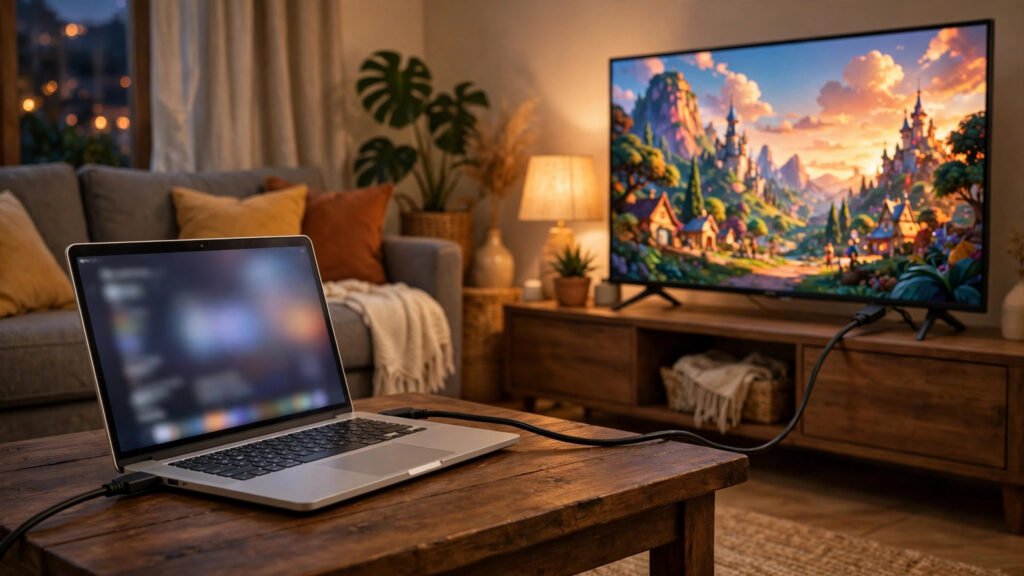
An HDMI cable is the best option for most people in Pakistan: cheap, widely available at computer shops, and lag-free — important for live cricket.
You need a cable long enough to reach the TV, and a spare HDMI port, usually labelled HDMI 1, HDMI 2, or HDMI 3. Almost every Windows laptop has a full-size HDMI port. Slim ultrabooks with only USB-C need a small USB-C to HDMI adapter.
Plug one end into the laptop and the other into the TV, then use the remote to change the TV input to the matching HDMI port. Your laptop should detect the TV within a few seconds. On Windows, press the Windows key and P together. Choose Duplicate for the same picture on both screens, Extend to use the TV as a second monitor, or Second screen only to use just the TV.
If the picture looks stretched or blurry, right-click the desktop, choose Display settings, and set the resolution to the recommended value — usually 1920 x 1080 for Full HD, or 3840 x 2160 for 4K.
Getting Sound Through the TV
Right-click the speaker icon in the taskbar, choose Sound settings, and under Output select your TV. If it does not appear, check the cable is firmly connected, then restart the laptop with the cable already plugged in.
Method 2: Chromecast
A Chromecast is a small device that plugs into your TV’s HDMI port and lets you send video from your laptop, phone, or tablet over Wi-Fi. It suits you if your laptop is far from the TV, or if several people want to take turns casting from their own devices.
Plug the Chromecast into an HDMI port and connect its power cable to a USB port on the TV or a wall socket. Make sure your laptop and the Chromecast are on the same Wi-Fi network — this is essential, and the step most people miss. Open Google Chrome, click the three-dot menu, choose Cast, and select your Chromecast.
Cast a single browser tab for YouTube or a cricket stream, or your whole desktop for presentations. Keep the router in the same room as the TV.
Method 3: Wireless Mirroring With Miracast
Many Windows laptops and smart TVs in Pakistan support Miracast, a built-in wireless display standard that needs no extra device. It works best when both devices are fairly new — most laptops running Windows 10 or Windows 11 and most recent smart TVs support it.
On your laptop, press the Windows key and K together to open the Connect panel. Your TV should appear if it is turned on and screen mirroring is enabled — on Samsung TVs this is called Screen Mirroring; on other brands, look for Miracast, Wireless Display, or Cast. There can be a short delay, so it suits slideshows, photos, and browsing better than gaming or fast live sport.
What to Do If the TV Shows No Signal
First, check you selected the correct HDMI input. Second, unplug the cable at both ends and plug it back in firmly — loose connections are surprisingly common. Third, try a different HDMI port or cable, as cheap cables do fail. On the laptop, press Windows key and P and choose Duplicate again. If that fails, restart the laptop with the cable connected, and update your graphics drivers through Windows Update.
What to Do If There Is Picture but No Sound
If the picture is fine but sound still comes from the laptop, check the sound output setting above and make sure the TV is selected. Check the TV volume is up and not muted, and the video player itself is not muted. Note that a VGA cable carries video only — sound needs a separate 3.5mm audio cable.
Tips for Cricket, Movies and Presentations
For PSL matches, use HDMI for the smoothest picture, and close unnecessary apps and tabs before the match so the stream does not stutter. Set the TV picture mode to Sports or Standard rather than Vivid. For movies, dim the lights, choose Second screen only, and plug the laptop into its charger. For presentations, arrive early, test the connection, and bring your own cable and adapter.
Buying a Cable or Adapter in Pakistan
You do not need the most expensive cable — a standard HDMI cable from a known brand works well. A 1.5-metre cable suits a nearby table; a 3-metre cable lets you sit further back. Avoid unbranded cables sold loose, as they often fail within weeks. For a USB-C-only laptop, buy an adapter that mentions video output, not just charging.
Frequently Asked Questions
Can I connect my laptop to a non-smart TV?
Yes. Any TV with an HDMI port works with a cable, even if it is not a smart TV — the laptop does all the work, and the TV simply acts as a large monitor.
Why is the picture blurry or cut off at the edges?
This is usually a resolution or overscan issue. Set the laptop resolution to the TV’s native resolution, then check the TV’s picture settings for Just Scan, Screen Fit, or 1:1 Pixel Mapping.
Can I close my laptop lid while using the TV?
Yes, but change one setting first: go to Control Panel, then Hardware and Sound, then Power Options, and set closing the lid to Do nothing when plugged in.
Is wireless mirroring better than HDMI?
For reliability and picture quality, HDMI is better. Wireless mirroring is more convenient, but it can lag on weak Wi-Fi — use it for casual browsing and photos.
Conclusion
Connecting a laptop to a TV in Pakistan is straightforward once you know which method suits you. Start with an HDMI cable for the most reliable result — it is cheap, easy, and works with almost every laptop and TV. Add a Chromecast to cast without cables, or try Miracast if both devices support it. Remember the two fixes that solve most problems: select the right HDMI input, and check the sound output in Windows.