Buffering videos, Zoom calls freezing and games lagging — slow WiFi is one of the most frustrating problems in Pakistani homes. Before you blame your internet provider or pay for a faster package, try these fixes. In most homes, the problem is not the connection itself but the router’s position, settings or too many devices fighting for bandwidth. This guide walks you through 10 practical fixes, from free five-minute changes to upgrades worth paying for.
First, Measure Your Real Speed
Before changing anything, test your speed so you know whether a fix actually helped. Use a free tool like Speedtest by Ookla or Fast.com on your phone while standing near the router, then again in the room where you usually face problems. Note both numbers. Test at different times of day too — speeds often drop in the evening when the whole neighbourhood is online. If your speed near the router matches your package but drops sharply in another room, the problem is WiFi coverage, not your connection. If it is slow even next to the router, the problem may be the line or the provider.
Fix 1: Move Your Router to a Better Spot
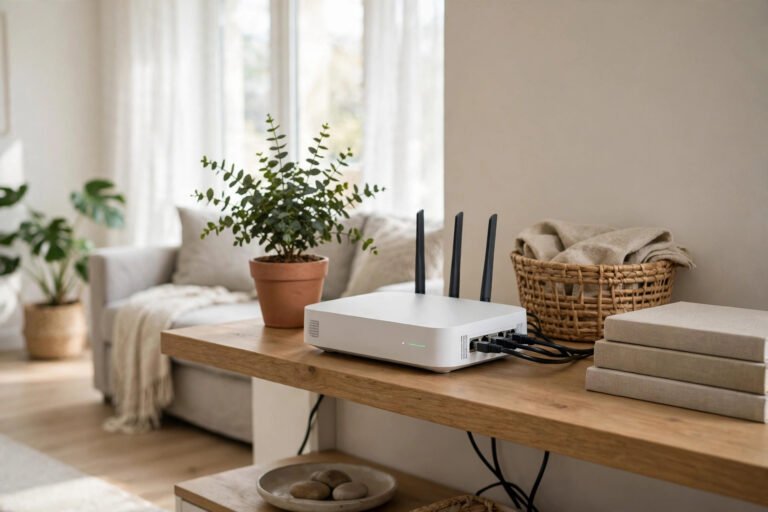
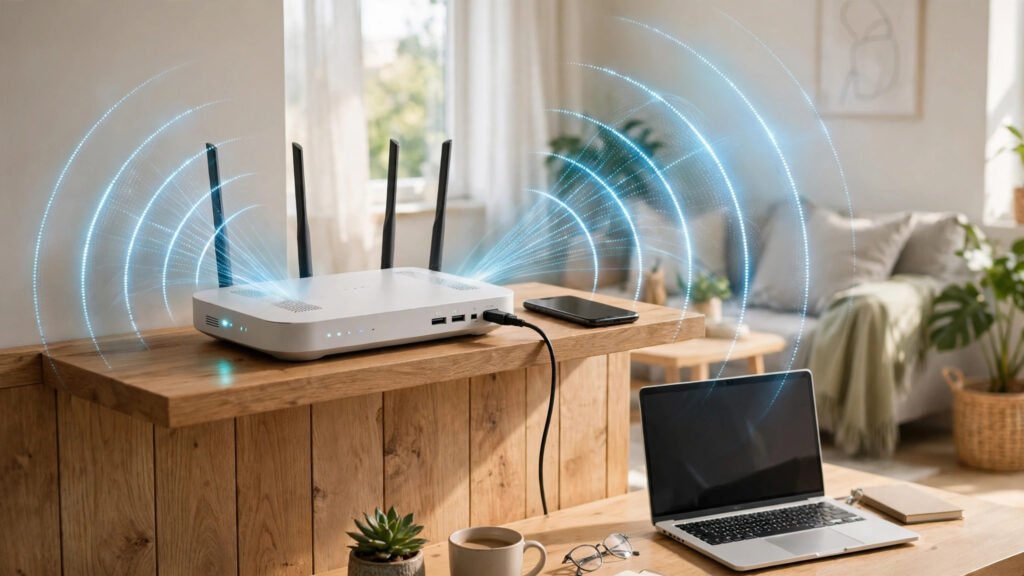
Router placement is the single biggest free improvement. Your router should sit in a central, open spot in your home — on a table or shelf, not inside a cupboard, behind the TV or on the floor. WiFi signals spread outward and downward, so a higher position helps. Keep it away from thick concrete walls, metal cupboards, microwave ovens and large water tanks, all of which block signals. In a typical Pakistani home with concrete walls, one central router often struggles to reach far rooms — that is a coverage problem, covered in Fix 9.
Fix 2: Restart Your Router Regularly
Routers are small computers, and like any computer they benefit from a restart. Unplug your router for 30 seconds once a week, then plug it back in. This clears temporary glitches and can restore speed. If your router has a restart button in its settings page, that works too. Do not confuse this with a factory reset — a simple restart keeps all your settings.
Fix 3: Secure Your WiFi Password
An open or weakly protected WiFi network invites neighbours to use your connection. Make sure your WiFi uses WPA2 or WPA3 security and set a strong password you have not shared widely. If your speed suddenly dropped, check the connected devices list in your router’s admin page — change the password if you find unknown devices.
Fix 4: Switch to the 5 GHz Band
Most modern routers broadcast two networks: 2.4 GHz and 5 GHz. The 2.4 GHz band travels further through walls but is slower and crowded, because it is also used by Bluetooth devices, microwaves and neighbours’ routers. The 5 GHz band is faster but covers a shorter range. If your device is in the same room as the router, connect it to the 5 GHz network for better speed. If you are far away, 2.4 GHz may be more stable. Many routers let you give the two bands different names so you can choose manually.
Fix 5: Change Your WiFi Channel
In apartment buildings and dense neighbourhoods, dozens of routers compete on the same channels, causing interference. In your router’s wireless settings, try switching the 2.4 GHz channel to 1, 6 or 11 — these three do not overlap with each other. Free phone apps like WiFi Analyzer can show which channels are least crowded around you. On 5 GHz, interference is usually less of a problem, but the same idea applies.
Fix 6: Limit Bandwidth-Hungry Activity
One person streaming 4K video or downloading large files can slow the whole house. If your connection is modest, stream in HD rather than 4K, pause large downloads during work calls, and set phones and laptops to update apps overnight.
Fix 7: Disconnect Devices You Are Not Using
Smart TVs, old phones, tablets, smart bulbs and CCTV cameras all stay connected and use small amounts of bandwidth. Count your connected devices — many Pakistani households are surprised to find 15 or 20. Disconnect devices you no longer use, and turn off WiFi on devices you are not actively using. Fewer devices means more bandwidth for the ones that matter.
Fix 8: Use a Wired Connection for Important Devices
For a desktop PC, a smart TV or a gaming console, nothing beats an Ethernet cable. A wired connection is faster, more stable and completely unaffected by WiFi interference. If your router is in another room, a long Ethernet cable is cheap and easy to run along a wall. Even a powerline adapter — which sends internet through your home’s electrical wiring — can be a good middle option where running a cable is difficult.
Fix 9: Extend Your Coverage
If some rooms get weak signals, a WiFi extender or, better, a mesh WiFi system can help. An extender repeats the signal but often halves the speed, so place it halfway between the router and the weak room, not inside the weak room itself. A mesh system (two or three units working together) costs more but gives smoother coverage in larger homes. For a typical two- or three-bedroom home, a well-placed extender may be enough; for larger houses, mesh is the better investment.
Fix 10: Consider a Router Upgrade
If your router is more than five years old, it may not support modern speeds or the 5 GHz band properly. A new dual-band router from a reputable brand, bought locally with warranty, can transform your home network.
Frequently Asked Questions
Why is my WiFi slow at night in Pakistan?
Evening is peak usage time — your neighbours are also streaming and browsing, which can strain shared local infrastructure. If speeds are fine in the morning but slow at night, congestion is likely. A wired connection or a higher package may help.
Does a WiFi extender slow down internet?
A basic extender can reduce speed because it uses the same radio to talk to the router and your device. A mesh system or a wired access point avoids this problem, so choose based on your home size and budget.
What speed do I need for streaming and online classes?
For HD video and online classes, around 10 Mbps per active user is comfortable. A family of four streaming at once will want a package of 20 Mbps or more.
Is it safe to change router settings myself?
Yes, for the settings in this guide — password, band, channel and firmware updates are all routine. Just note down the original settings before changing anything, and never do a factory reset unless you know how to set the connection up again.
Conclusion
Most slow WiFi in Pakistani homes is fixed without spending a rupee: move the router, secure it, pick the right band and channel, restart it regularly and trim the device list. Work through these fixes one by one, testing your speed after each change. If the problem persists even next to the router, it is time to call your provider — now armed with speed-test numbers to support your complaint.