There are many moments when you need internet on a laptop or a second phone but have no WiFi nearby: during a load-shedding outage, while travelling, or when your home broadband stops working. Your phone’s mobile hotspot solves this by sharing your mobile data with other devices. This guide explains how to set it up on Android and iPhone, keep it secure, and avoid wasting your data package.
What Is a Mobile Hotspot?
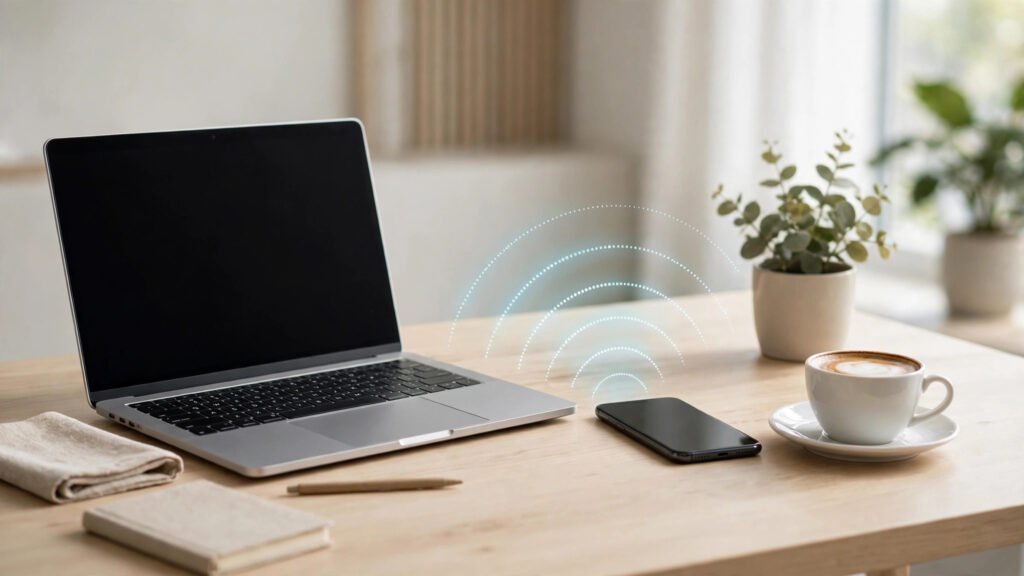
A mobile hotspot turns your phone into a small WiFi router. Other devices, such as laptops, tablets, and other phones, connect to it using WiFi, just as they would to a home router. Your phone uses its mobile data package, whether Jazz, Zong, Telenor, Ufone, or another network, to supply that internet. The feature is built into almost every modern smartphone, so you do not need any extra app to use it.
How to Turn On a Hotspot on Android
The exact menu names vary slightly by brand, but the steps are similar on Samsung, Xiaomi, Infinix, Tecno, and other Android phones:
- Open Settings, then tap Network, Connections, or Mobile Hotspot and Tethering.
- Tap Mobile Hotspot or Portable Hotspot and switch it on.
- Tap Hotspot settings to set a network name and a strong password. Use WPA2 security if offered.
- On the other device, open WiFi settings, find your phone’s hotspot name, enter the password, and connect.
You can also pull down the quick settings panel from the top of the screen and tap the Hotspot icon for faster access. If the icon is not visible, tap the edit button in quick settings and add it.
How to Turn On a Hotspot on iPhone
On an iPhone, the process is equally simple:
- Open Settings and tap Personal Hotspot.
- Switch on “Allow Others to Join”.
- Set a WiFi password if one is not already set. Use at least eight characters with a mix of letters and numbers.
- On the other device, open WiFi settings, select your iPhone’s name, and enter the password.
If Personal Hotspot does not appear, check that mobile data is switched on, and restart your phone. On some Pakistani networks, you may also need to check that your package supports tethering, though most standard data bundles do.
Sharing Internet by USB or Bluetooth
If WiFi hotspot is not working, you have two other options. USB tethering shares internet through a cable: connect your phone to the laptop with a USB cable, then enable USB Tethering in your phone’s hotspot settings. This is faster and more stable than WiFi, and it charges your phone at the same time. Bluetooth tethering uses less battery than WiFi but is slower, making it suitable only for light browsing or messaging. For most people, WiFi hotspot remains the easiest choice.
Keep Your Hotspot Secure
An open hotspot without a password lets strangers use your data and potentially see your connected devices. Always set a strong password and never share it publicly. Change the password regularly if many people have used your hotspot. Turn the hotspot off when you are finished, since leaving it on drains your battery and your data. Avoid doing online banking on a hotspot shared with people you do not trust, and keep your phone’s software updated for security fixes.
Save Mobile Data While Using a Hotspot
A laptop connected to a hotspot can burn through a mobile data package surprisingly fast, because laptops download updates, sync cloud files, and stream video at higher quality than phones. To control usage, set the laptop connection as “metered” in its WiFi settings, which pauses automatic updates. Ask connected devices to lower video quality on YouTube and avoid large downloads during hotspot sessions. On your phone, check data usage in Settings to see how much each session consumed, and consider a larger data bundle from your network if you hotspot regularly. Some networks in Pakistan also offer dedicated hotspot or MiFi bundles, which are worth comparing.
Fix Common Hotspot Problems
Other devices cannot see the hotspot. Turn the hotspot off and on again, restart your phone, and make sure the hotspot is not hidden in settings. Move the devices closer together.
Connected but no internet. Check that mobile data is on and that your package has remaining MBs. Try switching mobile data off and on, or restarting the phone. If the problem persists, contact your network’s helpline.
Hotspot keeps disconnecting. This often happens when the phone’s battery saver turns WiFi off. Plug the phone into a charger during hotspot use, and disable battery optimisation for hotspot if your phone offers that option.
Internet is very slow. Too many connected devices, weak mobile signal, or a nearly finished data package can all slow things down. Limit connections to one or two devices, move near a window or outdoors for better signal, and check your remaining balance with your network’s code.
Hotspot Etiquette and Costs
Remember that hotspot internet comes from your paid data package, so sharing it with many people can finish your bundle quickly. If friends regularly use your hotspot, agree on sharing the cost of a larger bundle. In offices and universities, check local rules before sharing a hotspot, and never use someone else’s hotspot without permission. A portable MiFi device, which is a small dedicated hotspot gadget with its own SIM, can be a better long-term option if you share internet daily, since it saves your phone’s battery.
FAQ
Does using a mobile hotspot cost extra in Pakistan?
Usually not, beyond your normal data usage. The data consumed counts against your existing mobile data package, so a large bundle is recommended for regular use.
How many devices can connect to a phone hotspot?
Most phones allow 5 to 10 devices, but speed drops as more devices connect. For best speed, connect only one or two devices at a time.
Why is my hotspot slow even with good signal?
Background updates, cloud syncing, and video streaming on connected laptops often consume data quickly. Set the connection as metered and pause large downloads.
Can I use a hotspot during load-shedding?
Yes, as long as your phone has battery and your mobile network has coverage. Keep a power bank handy, since hotspots drain batteries faster than normal use.
Conclusion
Sharing internet from your phone in Pakistan is easy once you know where the setting lives: turn on the hotspot, set a strong password, connect your other device, and turn it off when done. Watch your data usage, secure your connection, and use USB tethering when you need extra stability. Whether for work, study, or a backup during a broadband outage, your phone’s hotspot is one of the most practical tools in your pocket.