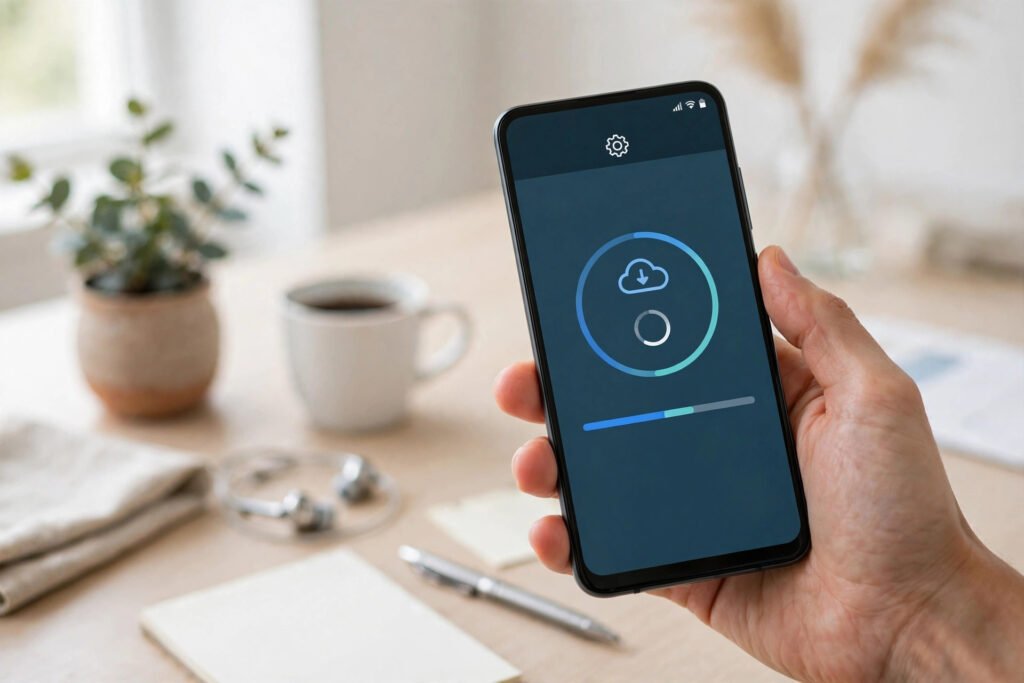
Android software updates bring security fixes, new features and better performance, but many users in Pakistan delay or fear them. Common worries include losing photos, running out of storage, using up mobile data, or the phone becoming slow after an update. Most of these problems can be avoided with a few simple precautions. This guide explains how to update Android safely, step by step, whether you use Samsung, Xiaomi, Infinix, Tecno, Oppo, Vivo or another Android brand popular in Pakistan.
Why Android Updates Matter
System updates do more than add new features. They fix security weaknesses that scammers and malware can exploit, improve battery management, fix bugs, and sometimes improve camera or network performance. App updates work similarly: they fix crashes, add features and patch security issues. Delaying updates for months leaves your phone more vulnerable, especially if you use banking apps, JazzCash, Easypaisa, WhatsApp and email daily. You do not need to install every update the minute it appears, but staying reasonably up to date is one of the simplest ways to keep your phone safe.
Before You Update: Back Up and Prepare
Before a major system update, take five minutes to prepare. First, back up your important data. Check that Google backup is on in Settings, and confirm that your photos are backed up to Google Photos if you use it. For WhatsApp, check Settings, then Chats, then Chat Backup, and back up to Google Drive over WiFi. Keep a separate copy of very important documents on a computer or USB drive if possible. Second, charge your phone to at least 50 percent, or keep it plugged in during the update. An update interrupted by a dead battery can cause serious problems. Third, connect to stable WiFi rather than mobile data, because system updates are often large and can consume a big part of a data package. If you only have mobile data, check the update size first and consider using a family member’s WiFi or a trusted hotspot. Finally, free up storage if your phone warns that space is low. Delete duplicate photos, old videos, unused apps and large downloaded files. Most Android phones need some free space to download and install an update smoothly, and a full phone is a common cause of failed updates.
How to Check for a System Update
The steps are similar across brands, though menu names vary slightly. Open Settings, then look for Software Update, System Update, or About Phone followed by System Update. Tap Check for Updates or Download and Install. If an update is available, read its size and description, then tap Download. Do not interrupt the download. Keep the phone connected to WiFi and power, and avoid using heavy apps during installation. When the phone restarts, it may take a few minutes longer than usual on the first boot after an update. This is normal. Do not force-restart the phone during this stage unless it is stuck for a very long time. Some phones receive updates in stages, so your friend’s phone may get an update before yours, even if you use the same model. This does not mean your phone is faulty. Check again after a few days, and avoid downloading update files from unknown websites, which can contain malware.
How to Update Apps Safely
Open the Google Play Store, tap your profile icon, then Manage Apps and Device, then Updates Available. You can update apps individually or tap Update All. For safety, update banking, payment, WhatsApp and browser apps promptly, because these handle sensitive data. Avoid installing apps from unknown sources or APK websites unless you fully understand the risks. Apps outside the Play Store can contain malware, steal data, or show aggressive ads. If an app asks for unusual permissions after an update, such as a torch app asking for contacts, review and revoke permissions you do not trust in Settings, then Apps, then Permissions. Turn on automatic app updates over WiFi only if you want convenience without using mobile data. This setting is useful for students and families, but check it after major changes, because some phones reset it after a system update.
After the Update: What to Check
After a system update, check the basics: mobile signal, WiFi, calls, messages, camera, fingerprint or face unlock, and your most important apps. If an app crashes after an update, try clearing its cache in Settings, then Apps, then the app, then Storage, then Clear Cache. Do not clear data unless you understand that it may sign you out and delete local app data. Battery drain for a day or two after a major update is common, because the phone re-indexes files and apps in the background. If battery drain continues for more than a few days, check which app is using the most battery in Settings, then Battery, and restrict background usage for apps you rarely use. If your phone feels slower after an update, restart it once, free up storage, and give it a day to settle. Major updates sometimes need time to optimise apps. If problems persist, check your phone brand’s official support page or visit an authorised service centre rather than following random YouTube fixes that may involve risky settings.
Common Update Problems and Fixes
Update download stuck: check WiFi stability, free up storage, restart the phone, and try again. Avoid downloading during load-shedding if your router may lose power. Not enough storage: delete large videos, clear cached files, uninstall unused apps, and move photos to Google Photos or a computer before retrying. Phone stuck on logo after update: wait at least 15 to 20 minutes on first boot. If it remains stuck, contact your brand’s official support or an authorised service centre. Do not attempt advanced recovery steps from unknown videos unless you understand the risk of data loss. App not working after update: update the app itself from the Play Store, clear its cache, restart the phone, and if needed, uninstall and reinstall it from the official store. No update available: your phone model may have reached the end of its update support period, or updates may roll out in stages. Check your brand’s official update policy for your model, and keep apps updated even if system updates stop.
Tips for Pakistani Users: Data, Load-Shedding and Older Phones
In Pakistan, data cost and load-shedding affect updates more than in many countries. Schedule large updates at night over WiFi when power is stable, and use a UPS for your router if you have one. If you share WiFi with family, warn them that an update may slow the connection briefly. For older phones with limited storage, be selective: prioritise security and system updates, keep essential apps updated, and remove apps you no longer use. A factory reset is a last resort, not a routine fix, and should only be done after a full backup, because it deletes all data on the phone. Finally, beware of fake update messages. Genuine Android updates arrive through Settings, not through pop-up ads, SMS links or WhatsApp forwards claiming your phone will stop working. Never click update links from unknown messages.
FAQ
Will updating Android delete my photos and contacts? No, a normal official update does not delete your data. Still, back up important photos, contacts and WhatsApp chats before a major update, as a safety precaution. Should I update immediately or wait a few days? For security updates, update promptly. For major version updates, waiting a few days is fine, especially if early users report bugs, but do not delay for months. Why does my phone say no update is available? Updates roll out in stages by model and region, or your model may have ended its support period. Check again later and keep your apps updated from the Play Store. Is it safe to update over mobile data in Pakistan? It is possible, but not ideal for large updates, because it can consume a large part of your data package. Use WiFi where possible, and check the update size before downloading over mobile data.
Conclusion
Updating Android safely in Pakistan is straightforward: back up first, charge your phone, use stable WiFi, download only through Settings and the Play Store, and check your phone after the update. These simple habits protect your data, improve security and keep your phone running smoothly. Do not fear updates, and do not trust fake update links. Update wisely, and your Android phone will stay safer and more reliable for longer.