If your PC sounds like a jet engine, feels hot, or slows down during games, dust is very likely the culprit. In Pakistan, dust is everywhere, from busy roads to dry, windy days. It creeps into every fan, vent and heatsink, blocks airflow, and traps heat. Cleaning your PC safely is a simple job you can do at home. This guide explains how, step by step.
Why Dust Is a Bigger Problem in Pakistan
Pakistan’s climate makes PC dust a year-round issue. Dust storms, construction work and open windows all send fine dust into homes. In many houses, the PC sits on the floor or near a window, where it collects dust even faster.
When dust builds up, fans spin faster and louder, temperatures rise, and the processor slows itself down to avoid damage. Regular cleaning keeps your PC fast, quiet and reliable.
Signs Your PC Needs Cleaning
You do not need to open your PC to know it needs attention. Listen for fans that are constantly loud, even when you are only browsing. Feel for hot air from the vents, or a case that is warm to the touch. Watch for sudden shutdowns, freezing, or games that stutter.
If you can see dust on the vents, that is a clear sign. If it has been more than six months since the last clean, it is probably time. Daily users should clean every three to four months in Pakistan, while lighter users can manage every six months.
What You Need Before You Start
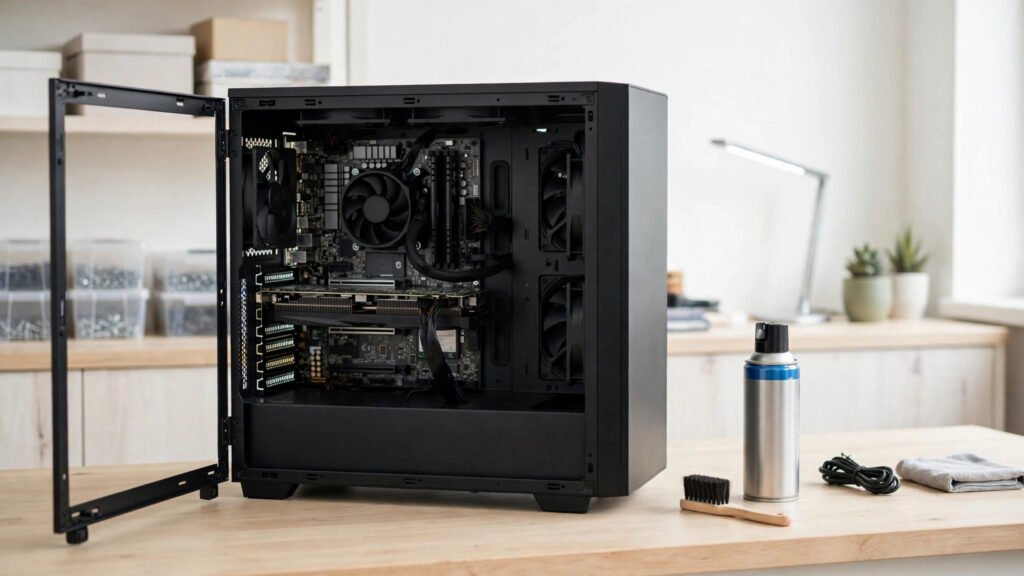
You will need a can of compressed air or a small electric air blower, a soft brush such as a clean paintbrush, a microfibre cloth, isopropyl alcohol for stubborn marks, cotton buds for tight corners, and a screwdriver for the side panel. A small torch helps you see inside the case.
Avoid using a regular vacuum cleaner inside the PC, because it can create static electricity and damage sensitive parts. Avoid wet wipes and household cleaners on electronic components. Work on a clean table in a well-ventilated room, and wash your hands before you start.
Step 1: Shut Down and Unplug Everything
Save your work, shut down the PC properly, and switch off the power supply at the back. Unplug the power cable, then all other cables: monitor, keyboard, mouse and USB devices. If you have a laptop, remove the charger.
Press and hold the power button for five seconds after unplugging. This discharges any remaining power. Move the PC to a table or an open area, preferably near a window or balcony, because cleaning will release a lot of dust. If you have allergies, wear a mask.
Step 2: Open the Case and Take a Photo
Remove the side panel with a screwdriver. Most cases have two screws at the back. Keep them in a small bowl. Before you touch anything, take a photo of the inside with your phone, so you remember where cables go.
Touch a metal part of the case to discharge static electricity from your body. Avoid wearing woollen clothes or rubbing your feet on carpet while you work. Handle components by their edges, and never touch the gold contacts on RAM or the pins on the processor.
Step 3: Remove Dust with Compressed Air
Start with the fans and vents, because they collect the most dust. Hold the can of compressed air upright and use short bursts, not a long continuous spray. Hold each fan still with a finger while you blow it, because letting it spin freely can damage the bearing. Work from top to bottom, so dust falls out of the case rather than deeper inside.
Pay attention to the CPU fan and heatsink, the graphics card fans, the power supply fan, and the case fans. Blow dust out of the vents and mesh filters. A thorough clean takes 15 to 20 minutes.
Step 4: Clean Heatsinks, Filters and Tight Areas
Heatsinks have many thin fins that trap dust. Use a soft brush to loosen dust between the fins, then blow it away. Do the same for the graphics card heatsink and dust filters. Most cases have removable filters; slide them out, wash them if the manual allows it, dry them completely, and put them back. Never put a wet filter back in the PC.
Use cotton buds lightly dampened with isopropyl alcohol to clean stubborn dust around fan hubs and edges. Wipe the inside of the side panel with a dry microfibre cloth. Do not use water inside the case, and do not spray compressed air directly onto the motherboard from very close range.
Step 5: Reassemble and Test
Once everything is clean and dry, put the side panel back on and tighten the screws. Reconnect all cables and turn on the PC. The fans should be quieter, and the PC should feel cooler. Open a temperature app such as HWMonitor to check your processor temperature; at idle it should be noticeably lower than before.
If the fans are still loud, check that all fans are spinning, that no cable is blocking a fan, and that the case has space around it for airflow. Do not place the PC in a closed cupboard.
Practical Tips
Clean dust filters monthly, keep the PC on a desk rather than the floor, and set a phone reminder to clean it every three to four months.
Frequently Asked Questions
How often should I clean my PC in Pakistan?
Every three to four months is a good routine for most users in Pakistan, because of dust and heat. If you live near a busy road or construction site, or you game every day, clean every two to three months. Light users can manage every six months.
Can I use a vacuum cleaner to clean my PC?
It is not recommended. A household vacuum can create static electricity that damages components, and its strong suction can harm small parts. Use compressed air or a small electric blower made for electronics, and hold fans still while you clean them.
Why does my PC still overheat after cleaning?
Cleaning removes dust, but overheating can also come from dried thermal paste, a failing fan, poor airflow, or very high room temperature. Check that all fans are spinning, improve ventilation, and consider replacing thermal paste or adding a case fan.
Is it safe to clean a laptop the same way?
The basic idea is the same, but laptops are more delicate. Use short bursts of compressed air through the vents, keep the laptop switched off and unplugged, and do not open it unless you know how. For a deep internal clean, take it to a trusted technician.
Conclusion
Cleaning your PC is one of the easiest and cheapest ways to keep it fast, quiet and cool in Pakistan. With compressed air, a soft brush and twenty minutes, you can remove months of dust, lower temperatures, and extend the life of your computer. Make it a regular habit, keep the PC off the floor, and watch for warning signs such as loud fans and sudden shutdowns.