Your phone buzzes all day — WhatsApp groups, Facebook notifications, calls from unknown numbers, and messages that can wait but still break your concentration. In Pakistan, where one phone often handles work, family, and business, the noise never really stops.
iPhone Focus Mode is Apple’s answer. It lets you decide, for each part of your day, which people and apps are allowed to reach you — and silences everything else.
What Is Focus Mode?
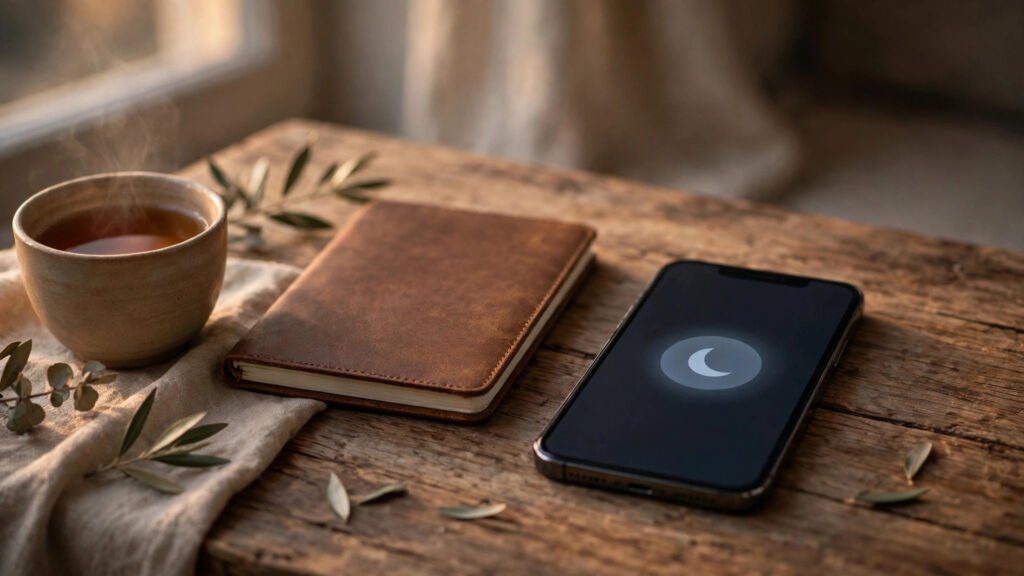
Focus Mode is a feature on iPhone that filters notifications based on what you are doing. When you turn on a Focus — such as Work, Sleep, or Driving — your iPhone silences notifications from people and apps you have not allowed, and can also change your Home Screen and Lock Screen to match.
It is an expanded version of the old Do Not Disturb: several Focus modes, each with its own rules, schedule, and allowed contacts, which you can switch manually or set to turn on automatically.
How to Turn On Focus Mode
There are two quick ways. From Control Centre: swipe down from the top-right corner, tap Focus, and choose the mode you want. From Settings: go to Settings > Focus, tap a Focus mode, and customise its rules, schedule, and allowed contacts. A small icon appears in the status bar when a Focus is active.
Setting Up Work Focus
Work Focus is the most useful mode for most people in Pakistan — students, freelancers, office workers, and shop owners alike. The goal is simple: let work messages through, silence everything else.
- Go to Settings > Focus > Work.
- Under Allowed Notifications, tap People. Add the colleagues, clients, or family members whose calls and messages should always come through.
- Under Allowed Notifications, tap Apps. Add the apps you need for work — for example, WhatsApp Business or Gmail. Leave social media and games off the list.
- Turn on Time Sensitive Notifications if you want urgent alerts, such as banking notifications, to break through.
- Under Set a Schedule, add your work hours — for example, Monday to Friday, 9 AM to 5 PM.
Even during work, add one or two family members to the allowed list, so a genuine emergency can reach you. Turn on Allow Repeated Calls, so if the same person calls twice within three minutes, the second call comes through.
Setting Up Sleep Focus
Sleep Focus protects your rest. It silences everything except the people and apps you choose, dims the Lock Screen, and can work with the Sleep schedule in the Health app.
- Go to Settings > Focus > Sleep.
- Under Allowed Notifications, tap People. Add only the people who should be able to wake you — for example, your spouse or a parent. Keep this list very short.
- Under Apps, allow only essential apps, if any. Most people allow none.
- Tap Set a Schedule and choose your bedtime and wake-up time — for example, 11 PM to 7 AM.
Sleep Focus works best when the phone is not beside your pillow — put it on a table across the room, so you are not tempted to check it. You can also turn it on manually from Control Centre before a daytime nap. And do not worry about your alarm: Sleep Focus does not silence it.
Setting Up Driving Focus
Driving Focus is a safety feature. When it is on, it silences notifications and can send an automatic reply to people who message you, telling them you are driving. In Pakistan, where road traffic is busy and unpredictable, this is genuinely useful.
- Go to Settings > Focus > Driving.
- Under Allowed Notifications, tap People. Allow no one, or only a spouse or parent for emergencies.
- Turn on Auto-Reply and choose who receives it. You can customise the message.
- Under Turn On Automatically, choose When Connected to Car Bluetooth, or Automatically so your iPhone detects driving motion. You can also turn it on manually from Control Centre.
Make turning it on a habit, like putting on your seatbelt. Do not override it for messages — no message is worth the risk of reading it while driving. If a call is urgent, pull over safely first.
Creating a Custom Focus
You are not limited to the built-in modes. A Study Focus allows only a parent and a teacher, silences social media, and turns on during study hours. A Namaz Focus silences everything for a set time during prayers. A Family Time Focus allows only family members and turns on in the evening.
To create one, go to Settings > Focus, tap the + button, choose Custom, give it a name and an icon, and set its allowed people, apps, and schedule. If you wear an Apple Watch, Focus modes sync between your iPhone and your watch.
Common Problems and Fixes
“Focus turns on at the wrong time.” Check the schedule in Settings > Focus and make sure the days and times are correct.
“I am missing important calls.” Check your allowed people list, and turn on Allow Repeated Calls so a second call from the same person within three minutes gets through.
“Notifications still come through.” Some apps use Time Sensitive notifications, which can break through unless you turn that option off.
“Driving Focus turns on when I am a passenger.” Tap the notification and choose I’m Not Driving.
“My family thinks I am ignoring them.” Tell them about Focus Mode in advance, so they know it means “busy,” not “ignoring you.”
Practical Tips for Pakistani Users
In Settings > Phone, you can silence calls from unknown numbers — combined with Focus Mode, this cuts most spam and marketing calls. Always allow at least one family member in every Focus, so a real emergency can reach you. And review your Focus modes monthly, so your schedules match your actual routine.
Frequently Asked Questions
Does Focus Mode block calls completely?
No. It silences notifications from people and apps you have not allowed. Allowed contacts can still call and message you normally, and repeated calls can break through if you enable that option.
Can people tell when my Focus is on?
Yes, in apps like Messages, they may see a note that you have notifications silenced. They can choose to notify you anyway for urgent messages.
Does Focus Mode save battery?
Slightly. Fewer notifications mean fewer times the screen lights up. The main benefit is focus, not battery life.
Is Focus Mode the same as Do Not Disturb?
Do Not Disturb is now one of the Focus modes. Focus Mode is the wider system — it includes Do Not Disturb plus Work, Sleep, Driving, Personal, and any custom modes you create.
Conclusion
Focus Mode is one of the most useful features on the iPhone, and it costs nothing to use. Set up Work Focus for your office or study hours, Sleep Focus for the night, and Driving Focus for the road. Allow the people who truly matter, silence the rest, and let your phone work around your life instead of interrupting it.